Showing posts with label Google Tools. Show all posts

Thursday, June 12, 2014

Move Documents from one Google Account to Another

Our district is implementing Google Apps for Education, and today I trained several teachers on using Drive. Some of the teachers had already been using personal Google accounts to create documents and collaborate with their teams, and they wanted to know how to move those files from the personal Google accounts to their new school accounts.

You can't simply move the documents or files, but you can transfer the ownership of most files from account to the other. Simply follow these steps:


  1. Log into your personal Google account at drive.google.com.

  2. Check the box next to the item you want to add to your new account.

  3. Click the Share icon OR go to the More menu and select "Share..." 

  4. Add the email address of the new account in the field for "Invite people," then click Share & save. (If you have already shared the document with your new account, you can skip this step.)

  5. You should now see the new account listed in the shared settings. Click the drop-down menu to the right of the name and choose "Is owner."
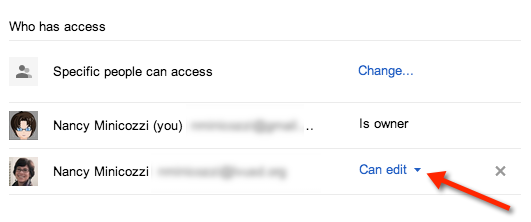
    Change owner

  6. Save your changes. Your new account is now the owner of the document, and the original account is an editor.

  7. (Optional) If you want to remove the document completely from the original account, log into your new account, go to the sharing settings for the document, and stop sharing with your original account.

If you have a regular Gmail account, be aware that you can't change the ownership of some files, such as images and PDFs. To move these files, follow these steps:

  1. Proceed as above and follow steps 1-4 to share the item with the new account.

  2. Log into the new account and located the item in the "Shared with Me" section.

  3. Click the box next to it and choose File > Make a copy.

  4. Choose the name you want for the copy.

This will create a copy of the item in your new account. If you want, you can go back to your original account and delete the item there. Remember that if you make a copy of a file, it will not be shared with the same people as the original. If there are files whose ownership cannot be transferred, but you want to work with them in a different account from the one where they were originally uploaded, it may be easier just to share them with the new account and leave the original file where it was.

This post cross-posted on CoffeeNancy.com.

Friday, April 11, 2014

A picture is worth 1,000 words: Google Drawing

If you have already made the switch to Google Apps, you have probably been experimenting with the Big 3: Docs, Spreadsheets, and Presentations. These are all great tools that support creativity, critical thinking, communication, and collaboration, but have you ever taken a look at Google Drawing? It's one of the best tools you probably never knew you had. Hidden away from view, it is easily accessed with one click of the Create button in your Google Drive.

Google Drive create button

Working with Google Drawing is easy. You can add shapes (hold down the shift key for perfect circles or squares), arrows, lines, text boxes, and tables. Images can be uploaded from your computer, added via snapshot, or linked from the web. If you need to search for an image, Google Drawing has you covered. Just click Insert > Image, choose Search and you can select from copyright-friendly image results from Google Search, the LIFE Photo Archive, or stock images (these have some restrictions when used outside of Google Drive, so proceed with caution).

Once you have created your drawing, there are many ways you can use it in your classroom. For example, you can make seating charts or create content to use with students, such as KWL charts, math drawings, or virtual manipulatives. Even better, have your students use it to make any number of products, such as word webs, timelines, comic strips, or graphic organizers. In fact, there are so many ways to use Google Drawing, we have added a new page to the LVUSD Teaching with Google Apps website. Want to learn more? Visit the Google Drawing page.